Django - introduction and architecture overview
Created for

Iva E. Popova, 2018-2019:

Django - introduction and architecture overview
Created for
Iva E. Popova, 2018-2019:
What is Django and what problem it solves? A brief history.
What is Django and what problem it solves??
- A high-level Python Web framework
- Exhaustive and opinionated
- Encourages rapid development, clean and pragmatic design
- Fast, secure, scalable, versatile...
- Mature
- First release: 2005
Applications made with Django
Applications made with Django
Read more: Top 10 Django Apps and Why Companies Are Betting on This Framework
Features
Features
- A lightweight and standalone web server for development and testing
- A form serialization and validation system
- Django ORM with rich database lookup API
- A dynamic admin interface
- a template system that utilizes the concept of inheritance borrowed from object-oriented programming
- a caching framework
- URL dispache
Django versions
Django versions
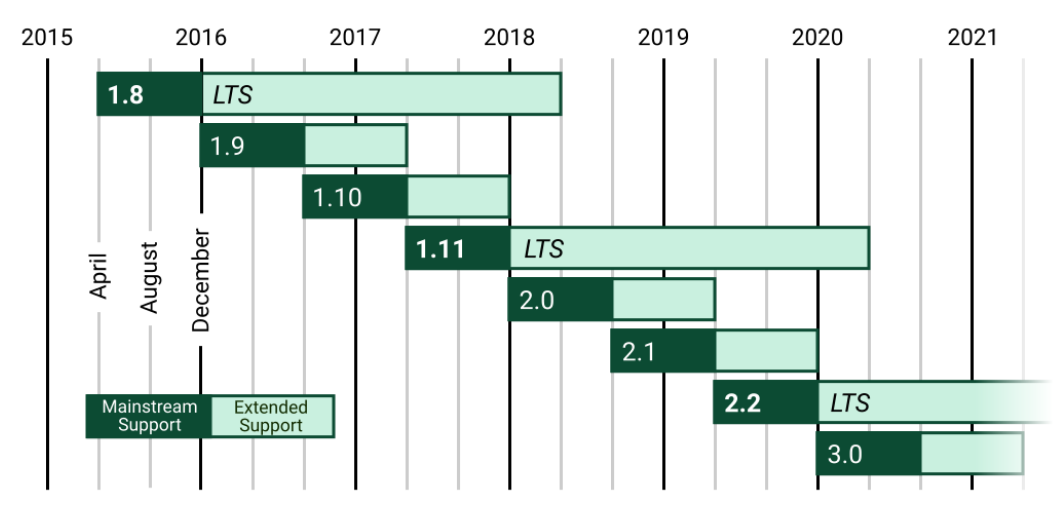
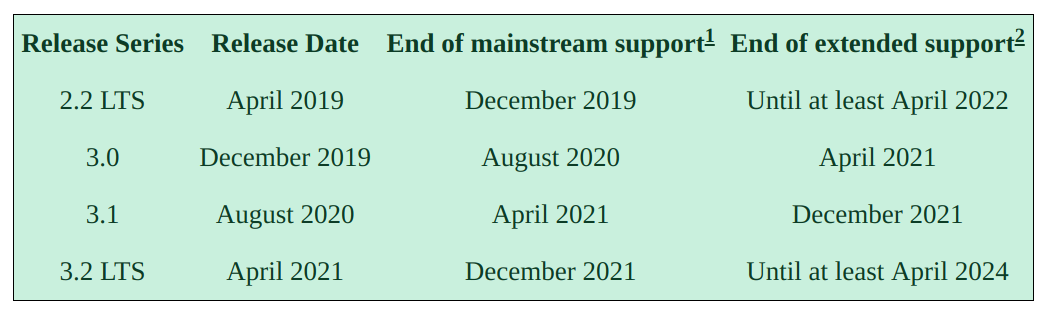
- LTS- long-term support releases
Future Versions Roadmap
Django MTV (Model Template View)
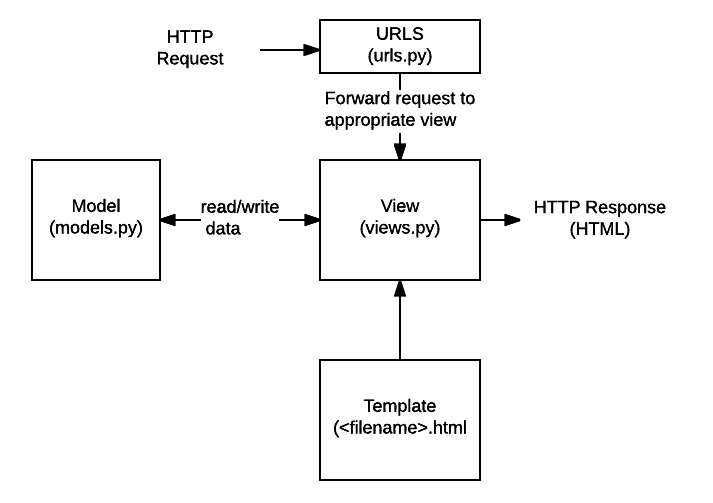
Django MVT (Model View Template)
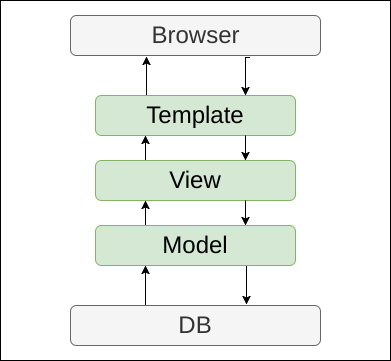
- The MVT architecture in Django:
- Model - DB operations (implemented through the Django ORM)
- View - describes which data is presented
- Template - describes how the data is presented
- Controller - the Django framework itself
Set up the ToDoApp project
Set up the ToDoApp project
Creating the project structure
			$ cd myprojects
			$ django-admin startproject ToDoProject
- A folder ToDoProject will be created into myprojects folder. It's just the project container and we can rename it to 'ToDoProjectContainer' to avoid paths missunderstandings
- The inner 'ToDoProject' folder contains the project files.
			ToDoProjectContainer/
			├── manage.py
			└── ToDoProject
						├── __init__.py
						├── settings.py
						├── urls.py
						└── wsgi.py
Project Structure Content
- manage.py: A command-line utility that lets you interact with this Django project in various ways.
- ToDoProject/: this folder is the actual Python package for your project. Its name is the Python package name you'll need to use to import anything inside it
- ToDoProject/__init__.py: An empty file that tells Python that this directory should be considered a Python package.
- ToDoProject/settings.py: Settings/configuration for this Django project
- ToDoProject/urls.py: The URL declarations for this Django project; a “table of contents” of your Django-powered site
- ToDoProject/wsgi.py: An entry-point for WSGI-compatible web servers to serve your project
Verify/Start the project
			$ cd ToDoProjectContainer/
			$ python manage.py runserver
			Performing system checks...

			System check identified no issues (0 silenced).

			You have 15 unapplied migration(s). Your project may not work properly until you apply the migrations for app(s): admin, auth, contenttypes, sessions.
			Run 'python manage.py migrate' to apply them.

			February 13, 2019 - 19:40:10
			Django version 2.1.7, using settings 'ToDoProject.settings'
			Starting development server at http://127.0.0.1:8000/
			Quit the server with CONTROL-C.
We will deal with migration warning later
Verify the project
- Do not close the terminal. The Django development server was started, and you can see you app running if you point your browser to http://127.0.0.1:8000/
- The server, included with Djano is intended to be used only for development. For production projects, you'll need to set up a server like Apache HTTP Server.
- Reference: django-admin/#runserver @docs.djangoproject.com
Create the ToDoApp
Create the ToDoApp
Create the ToDoApp Folder Structure
			# make sure you are in your project root folder (where 'manage.py' lives)
			$ pwd
			# {some_path}/ToDoProjectContainer

			$ django-admin startapp ToDoApp
Code your first view
- A View in Django is a function (or class) that in its simplest case takes a Web request and returns a Web response.
			from django.shortcuts import render
			from django.http import HttpResponse

			# Create your views here.
			def index(request):
			  return HttpResponse("This is the ToDoApp index.")
Map view to a URL
- Create file
ToDoApp/urls.py - Write the code:
			from django.urls import path

			from . import views

			urlpatterns = [
			    path('', views.index, name='index'),
			]
Point the project root URLconf at the ToDoApp.urls module
- In ToDoProject/urls.py, add an import for django.urls.include and insert an include() in the urlpatterns list, so you have
			from django.contrib import admin
			from django.urls import path,include

			urlpatterns = [
			    path('ToDoApp/', include('ToDoApp.urls')),
			    path('admin/', admin.site.urls),
			]
Verify
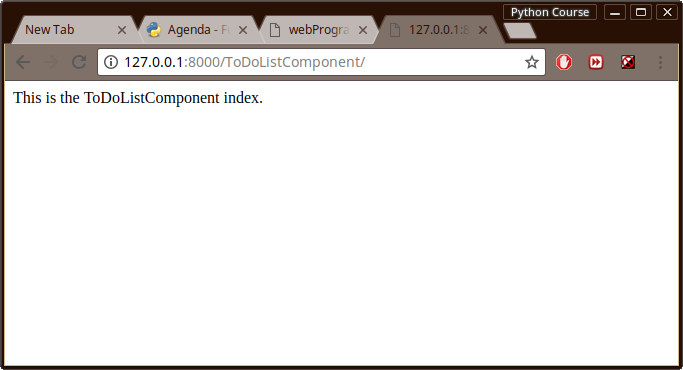
- Go to http://127.0.0.1:8000/ToDoApp/
- You should see:
Path? Routes?
- Route is a string that contains a URL pattern. When processing a request, Django starts at the first pattern in urlpatterns list (from ToDoProject/urls.py) and makes its way down the list, comparing the requested URL against each pattern until it finds one that matches.
View?
- A view function, or view for short, is simply a Python function that takes a Web request and returns a Web response. This response can be the HTML contents of a Web page, or a redirect, or a 404 error, or an XML document, or an image . . . or anything,
- When Django finds a matching URL pattern, it calls the specified view function with an HttpRequest object as the first argument.
- Or simple speaking, the view returns an HTML page which will be presented on the requested URL.
Database setup
Database setup
Overview of SQLite
- SQLite is an in-process library that implements a self-contained, serverless, zero-configuration, transactional SQL database engine
- SQLite is in the public domain and is thus free for use for any purpose, commercial or private.
- SQLite is included in Python, so you would not need to install anything else to support your database. When starting your first real project, however, you may want to use a more scalable database like PostgreSQL
Setup the ToDoApp SQLite DB
- First, lets activate the DB needed for the pre-installed Django apps (admin, auth, contenttypes, sessions)
			# make sure you're in project root folder
			$ pwd
			# {some_path}/ToDoProjectContainer

			python manage.py migrate
			Operations to perform:
				Apply all migrations: admin, auth, contenttypes, sessions
			Running migrations:
				Applying contenttypes.0001_initial... OK
				Applying auth.0001_initial... OK
				Applying admin.0001_initial... OK
				Applying admin.0002_logentry_remove_auto_add... OK
				Applying admin.0003_logentry_add_action_flag_choices... OK
				Applying contenttypes.0002_remove_content_type_name... OK
				Applying auth.0002_alter_permission_name_max_length... OK
				Applying auth.0003_alter_user_email_max_length... OK
				Applying auth.0004_alter_user_username_opts... OK
				Applying auth.0005_alter_user_last_login_null... OK
				Applying auth.0006_require_contenttypes_0002... OK
				Applying auth.0007_alter_validators_add_error_messages... OK
				Applying auth.0008_alter_user_username_max_length... OK
				Applying auth.0009_alter_user_last_name_max_length... OK
				Applying sessions.0001_initial... OK
Create the model of ToDoApp
- Django uses models to interact with the database.
- Each model represents a table in the database and it is used to add, update, delete data into the correponding table.
- It's a kind of abstraction of database operations, so you do not need to know perfectly well SQL
- Write in file
ToDoApp/models.py
			from django.db import models

			# Create your models here.
			class Task(models.Model):
				id = models.AutoField(primary_key=True)
				title = models.CharField('Title', max_length=100)
				description = models.TextField('Description')
				created = models.DateTimeField(auto_now_add=True)
				due = models.DateTimeField('due date')
				end = models.DateTimeField('end date')

				def __str__(self):
					return self.title
Plug the app
- To include the app in our project, we need to add a reference to its configuration class in the INSTALLED_APPS setting
- Open the
ToDoProject/settings.pyand append to it:
			INSTALLED_APPS = [
			    'ToDoApp',
			    'django.contrib.admin',
			    'django.contrib.auth',
			    'django.contrib.contenttypes',
			    'django.contrib.sessions',
			    'django.contrib.messages',
			    'django.contrib.staticfiles',
			]
Activate the app
$ python manage.py makemigrations ToDoApp
See the SQL which will be created
$ python manage.py sqlmigrate ToDoApp 0001
			CREATE TABLE "ToDoApp_task" (
				"id" integer NOT NULL PRIMARY KEY AUTOINCREMENT,
				"title" varchar(100) NOT NULL,
				"description" text NOT NULL,
				"created" datetime NOT NULL,
				"due" datetime NOT NULL,
				"end" datetime NOT NULL);
			COMMIT;
Create the model table in the DB
- Now, run migrate tool to create the ToDoApp model tables in your database:
python manage.py migrate
			Operations to perform:
			  Apply all migrations: ToDoApp, admin, auth, contenttypes, sessions
			Running migrations:
			  Applying ToDoApp.0001_initial... OK
Introducing the Django Admin
Introducing the Django Admin
Creating an admin user
In project root folder (ToDoProjectContainer) type:
$ python manage.py createsuperuser
You'll be prompt to enter the admin user details
			Username (leave blank to use 'nemsys'): admin
			Email address: admin@test.me
			Password:
			Password (again):
			This password is too short. It must contain at least 8 characters.
			This password is too common.
			This password is entirely numeric.
			Password:
			Password (again):
			Superuser created successfully.
Start the Admin Control Panel
- If there are any running Django server stop it first
- Now, start the server again:
$ python manage.py runserver
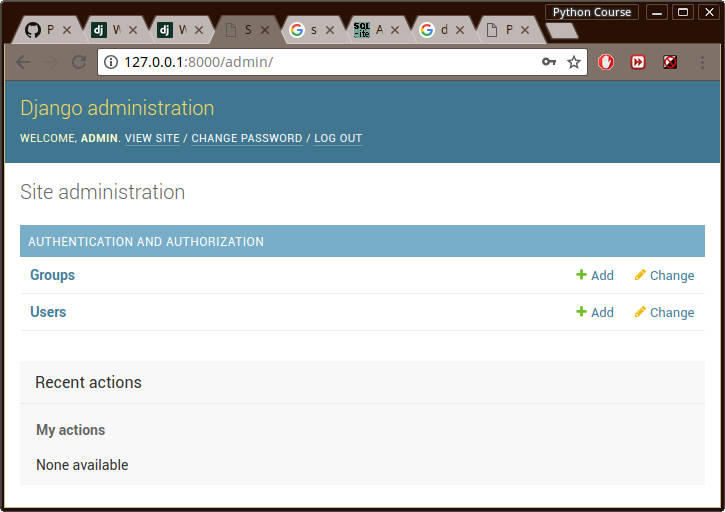
An admin panel should be loaded:
Add our ToDoApp to the Admin Interface
- Open
ToDoApp/admin.pyand register our Task model:
			from django.contrib import admin

			# Register your models here.
			from .models import Task

			admin.site.register(Task)
- If you refresh the Admin Interface (CTRL+F5), you should now see our Tasks model
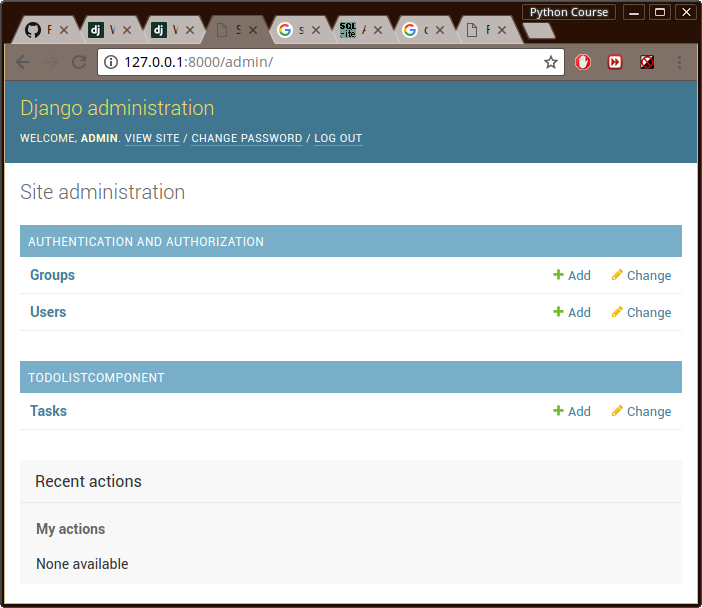
- From here, you can interface with the Task table, and add/modify/remove data
- The edit form will be automatically generated from the Tasks model.
Query DB from our ToDoApp
- Change
ToDoApp/views.pyas:
from django.shortcuts import render
from django.http import HttpResponse
from .models import Task
def index(request):
latest_tasks = Task.objects.order_by('-due')[:5]
output ="Task:
"
output += ', '.join([q.title for q in latest_tasks])
return HttpResponse(output)
Add some Templates
Add some Templates
task_list template
- In ToDoApp create a path named
templates/ToDoApp/and make the filetasks_index.htmlin it.
			$ pwd
			# {some_path}/ToDoProjectContainer

			$ mkdir -p ToDoApp/templates/ToDoApp
			$ touch ToDoApp/templates/ToDoApp/tasks_index.html

			ToDoApp/
			...
			├── models.py
			├── templates
			│   └── ToDoApp
			│       └── tasks_index.html
			├── tests.py
			├── urls.py
			└── views.py
- Add the HTML template code in
templates/tasks_index.html
			{% load static %}
			<!DOCTYPE html>
			<html lang="en">
			<head>
				<meta charset="UTF-8">
				<meta name="viewport" content="width=device-width, initial-scale=1.0">
				<meta http-equiv="X-UA-Compatible" content="ie=edge">
				<link rel="stylesheet" href="{% static 'ToDoApp/css/base.css'%}">
				<title>Document</title>
			</head>
			<body>
				<header>ToDo App</header>
				<section class="tasks"><h1>Current tasks:</h1>
					<ul>
						{% for task in task_list %}
						<li><span>{{task.title}}</span><span>{{task.due}}</span></li>
						{% endfor %}
					</ul>
				</section>
			</body>
			</html>
- Update our
ToDoApp/views.pyin order to use the template, and fill it will DB data
			from django.shortcuts import render
			from django.http import HttpResponse
			from .models import Task


			def index(request):
				# query the DB
				task_list = Task.objects.all()

				return render(
					request,
					'tasks_index.html',
					{
						'task_list' : task_list,
					}
				)
Add some CSS
- In the ToDoApp folder create the path
static/ToDoApp/css, and in it - make the filebase.css
			ToDoApp/
			...
			├── models.py
			├── static
			│   └── css
			│       └── base.css
			├── templates
			│   └── tasks_index.html
			├── tests.py
			├── urls.py
			└── views.py
- Put some CSS into
static/css/base.css, and refresh the page/or run the server again, if it was turn off
			body{
				background: #DDD5D5;
				margin: 0
			}
			header{
				height: 10vh;
				padding: .5em;
				background: #666;
				color: #FFBDBD;
				font-size: 3em;
				text-align: center;
			}
			ul,li{
				margin: 0;
				padding: 0;
			}
			.tasks{
				width: 80%;
				margin: 0 auto;
			}
			.tasks li{
				height: 2em;
				margin-left:1em;
			}
			.tasks li span:nth-of-type(1){
				margin-right: 1em;
			}
Exercises
Task1
The Task
- Create a simple 'about' page template (add some style, if you wish)
- Configure the route to it, so that it will opens on http://127.0.0.1:8000/ToDoApp/about
Submission
- Please, prefix your filenames/archive with your name initials, before sending.
- For instance: iep_task1.py or iep_tasks.rar
- Send files to progressbg.python.course@gmail.com
These slides are based on
customised version of
framework